
 Full Editorial
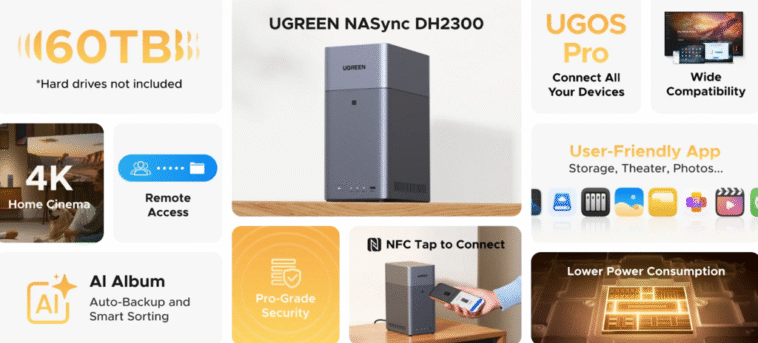
A home NAS is a place to store family photos, 4K videos, documents, and game libraries. It can also be easy; a lot of people start with a 2-bay NAS and add more space later. Take care of it regularly and with little effort to keep it healthy.
Updates for your home NAS’s firmware and operating system
Small changes stop big problems from happening. To get from power-on to reliable service, you need to start with the latest firmware, drivers, and apps. Do this when things are calm, not when you’re watching a movie or trying to back up your files.
Set up notifications and plan updates.
In the NAS admin panel, turn on email or mobile alerts. Set a schedule for updating the NAS OS, disk firmware (if it’s supported), and built-in apps. Reboot when there isn’t much going on in your house to avoid bothering anyone.
Read the notes about the release and the changes to the stage.
Check the release notes for security fixes and problems that have been reported. After updating the NAS OS, update any Docker or add-on packages you have. Updates in stages: first for storage services, then for media apps, and finally for remote access.
SMART and Drive Health Checks
Monitoring NAS drives work in small spaces. Finding out about failure trends early keeps data safe and weekends quiet. Early warnings are most useful for a 2-bay NAS because it has fewer disks and less redundancy.
Plan SMART tests
Give short SMART tests once a week and long tests once a month. Check for sectors that are rising, sectors that are pending, or sectors with a lot of errors. Set up the NAS to send you an email if a limit is reached.
Replace disks that are failing before they do.
If SMART shows more bad sectors or the NAS flags a drive, you should replace it soon. Get the same size or bigger. If you use the NAS every day, keep a spare on a shelf.
Keep an eye on the age and workload of your drives.
Put a date on each drive that says when it was installed. Most consumer NAS HDDs work well for a few years, but heat and vibration can shorten their lives. Plan to replace disks in a 2-bay NAS on different schedules so that they aren’t both new at the same time.
Real Backups, Snapshots, and RAID
RAID keeps the NAS running even if one drive fails, but it doesn’t stop deletion, ransomware, or theft. Add snapshots and real backups to your home NAS to make it more durable.
Don’t think of RAID as a backup; think of it as uptime.
If you want simple redundancy in a 2-bay NAS, use RAID1 or a vendor hybrid mode. Still make plans for backups outside. Do not use the array heavily during rebuilds; it is under a lot of stress and read errors hurt.
Add snapshots so you can quickly go back to a previous version.
Turn on snapshots for shares that have documents and photos on them. Daily snapshots let you undo changes you made by mistake or damage caused by malware without affecting your main backup set.
Use the 3-2-1 backup rule.
Store three copies of your data on two different types of media, with one copy kept off-site. Connect a USB backup and a cloud bucket to the home NAS. Every few months, test restores to make sure they work and are on time.
Power, Cooling, and Physical Care
Stable power and cool air are more important than fancy changes. A clean, quiet place will help any home NAS last longer and work faster every day.
Use a surge protector and a UPS.
A small UPS protects your filesystems from damage during short power outages and gives you time to shut down properly. Set a safe level for “auto shutdown on battery.” Connect the UPS to surge protection.
Keep an eye on the temperatures
Put the NAS outside, not in a cabinet that is closed. Every few months, use a vacuum to clean the vents. Under load, the drive temps should be in the mid-30s °C. High temps shorten the life of the drive.
Be careful with bays
If your NAS doesn’t support hot-swapping, turn it off. Don’t push anything; just slide the drives in and out. Mark which slot is Disk 1 on a 2-bay NAS to avoid making mistakes when you swap them out.
Managing storage and filesystems
Healthy filesystems cut down on silent corruption and strange slowdowns. A few scheduled tasks keep your home NAS fast and reliable even when you’re importing a lot of photos or streaming media.
Do scrubs or data checks
If your NAS supports Btrfs or ZFS, set up monthly or quarterly scrubs to look for and fix checksum errors. For ext4 or XFS, follow the vendor’s instructions to turn on periodic filesystem checks.
Watch for fragmentation and capacity
For smoother writes and snapshots, keep at least 15–20% of the space free. Run defragmentation or balance tasks on your NAS during off-hours if it has them. That extra space is helpful for big photo libraries.
Network, Remote Access, and Safety
It’s important to be safe at home, but it’s also important to be comfortable. A few changes make things safer while still letting the family stream and access files from afar.
Two-factor authentication and strong passwords
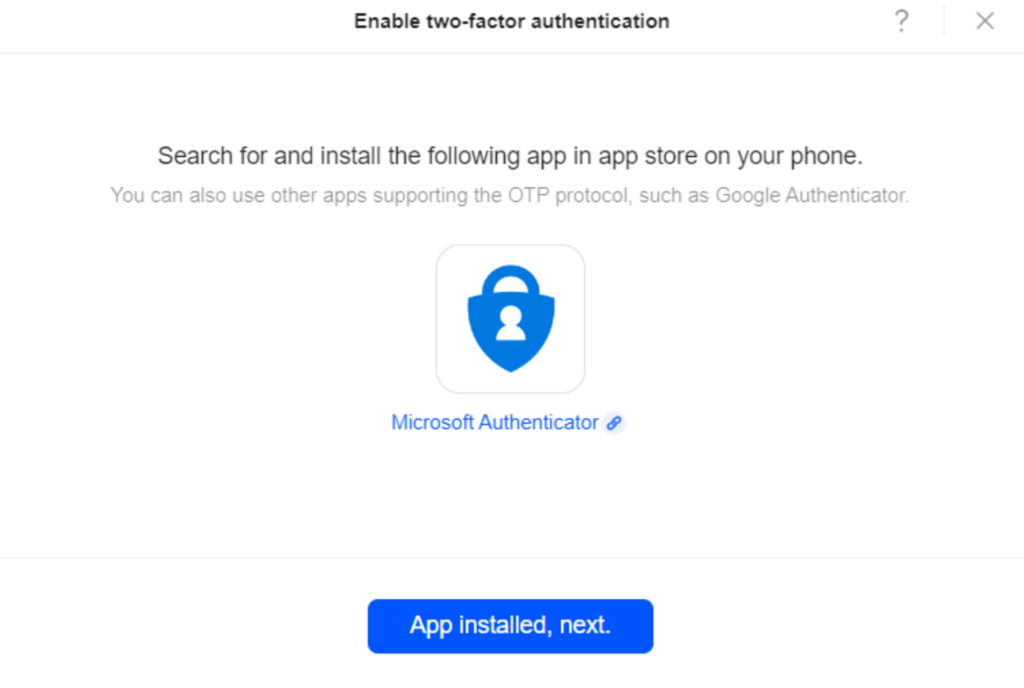
If you need step-by-step help enabling 2FA on your device, see our NAS MFA setup guide for recommended apps, recovery codes, and common pitfalls to avoid. It’s a quick way to lock down admin access without disrupting everyday use.
Choose VPN over open ports.
Use the secure tunnel that comes with your NAS or your router’s VPN. Don’t let SMB, SSH, or the web console talk to the internet directly through port forwarding. Use strict IP allowlists if you have to.
Update containers and apps
Media servers and download tools get security updates all the time. Use the NAS OS to update them. If you don’t use a package anymore, take it off your system. Fewer services mean fewer ways for attackers to get in.
Users, Permissions, and House Rules
Clear rules about who can go where save time and keep people safe. A well-organized home makes it easy for all of your devices to find media, backups, and school files without any problems.
Set up separate accounts and the least amount of access.
Allow kids to read shared media, write to their own folders, and not have access to admin areas. Map network drives or shortcuts so that laptops can always reconnect after sleeping.
Keep names and folders clean.
Use easy-to-understand names for your folders, like “Photos,” “Videos,” “School,” and “Backups.” Don’t use special characters or extra spaces in filenames. Streaming boxes and TVs work best with simple names.
Use quotas when they are useful
Quotas stop one device from taking up all the space when you download a lot of games or raw photos. Look over your capacity plan and your quota alerts.
Logs, Alerts, and Monitoring
Even quiet systems can have problems. A small number of alerts lets you know what’s going on without bothering you during dinner or bedtime.
Turn on push or email alerts.
Set up alerts for drive warnings, high temperatures, failed backups, and failed SMART tests. Send them to your main email address and, if you have one, a mobile app that works with your NAS brand.
Look over logs on a regular basis
Once a month, look through the system logs for repeated login failures, share errors, or sync problems. Before big updates, save important logs so you can compare behavior later.
A Simple Calendar for Home NAS Owners to Keep Up With
Routine beats heroics every time. A light calendar keeps the NAS running smoothly without it becoming a hobby. Change the timing based on how you use it, especially if your 2 bay NAS has family photos and work files on it.
Once a week (5–10 minutes)
Look at your alert emails. Check to see if the backup from last night worked. Check free space at random. After updating the OS, make sure that laptops can still access mapped shares.
Once a month (20–30 minutes)
Install updates for the operating system and apps, look over the SMART data, run a long SMART test, and vacuum up any dust if necessary. Look over how you’re using snapshots and delete any old ones that are older than your retention plan.
Every three months (30 to 45 minutes)
Try restoring a whole small folder from your USB or cloud backup. Check the filesystem or do a scrub. Check who has access to your account and delete any old accounts or apps that you don’t use anymore.
Practical Ways to Upgrade a Home NAS as It Grows Storage Needs
Plan small upgrades so that your system stays stable even when libraries grow or new devices join the network.
Scale in a planned way
If you started with a 2-bay NAS, you might want to upgrade to bigger drives first. Move data to bigger disks one at a time, and then rebuild the disks. If you need more spindles or higher redundancy, you should only move to a 4-bay chassis.
Keep the parts the same
Use drives that are rated for NAS. If you can, match the RPM and the capacity. Keep track of the models of your drives, when you installed them, and the warranties so that replacing them is easy.
A home NAS works better with steady habits than with fancy changes. Make sure to keep your updates regular, check the health of your drives, secure remote access, and test your backups. If you do that, your NAS will work quietly for years.
Also see: